

IP Tools
- What is My IP Address
- My Location
- Ping IP Online
SEO Tools
- What is My IP Address
- My Location
- Ping IP Online
Developer Tools
- What is My IP Address
- My Location
- Ping IP Online
Cyber Security Tools
- What is My IP Address
- My Location
- Ping IP Online
How to Diagnose, Calibrate & Fix Your Touch Panel
Touch panels power everything from phones and tablets to kiosks, laptops, and car dashboards. When taps miss, swipes jitter, or parts of the display go dead, a quick screen test can save you hours of guessing. This guide explains why and how to test the touch screen, which tools to use (from a simple touch screen checker to an advanced multitouch tester), what your results mean, and the fixes you can try as per current information.
Why run a touchscreen test?
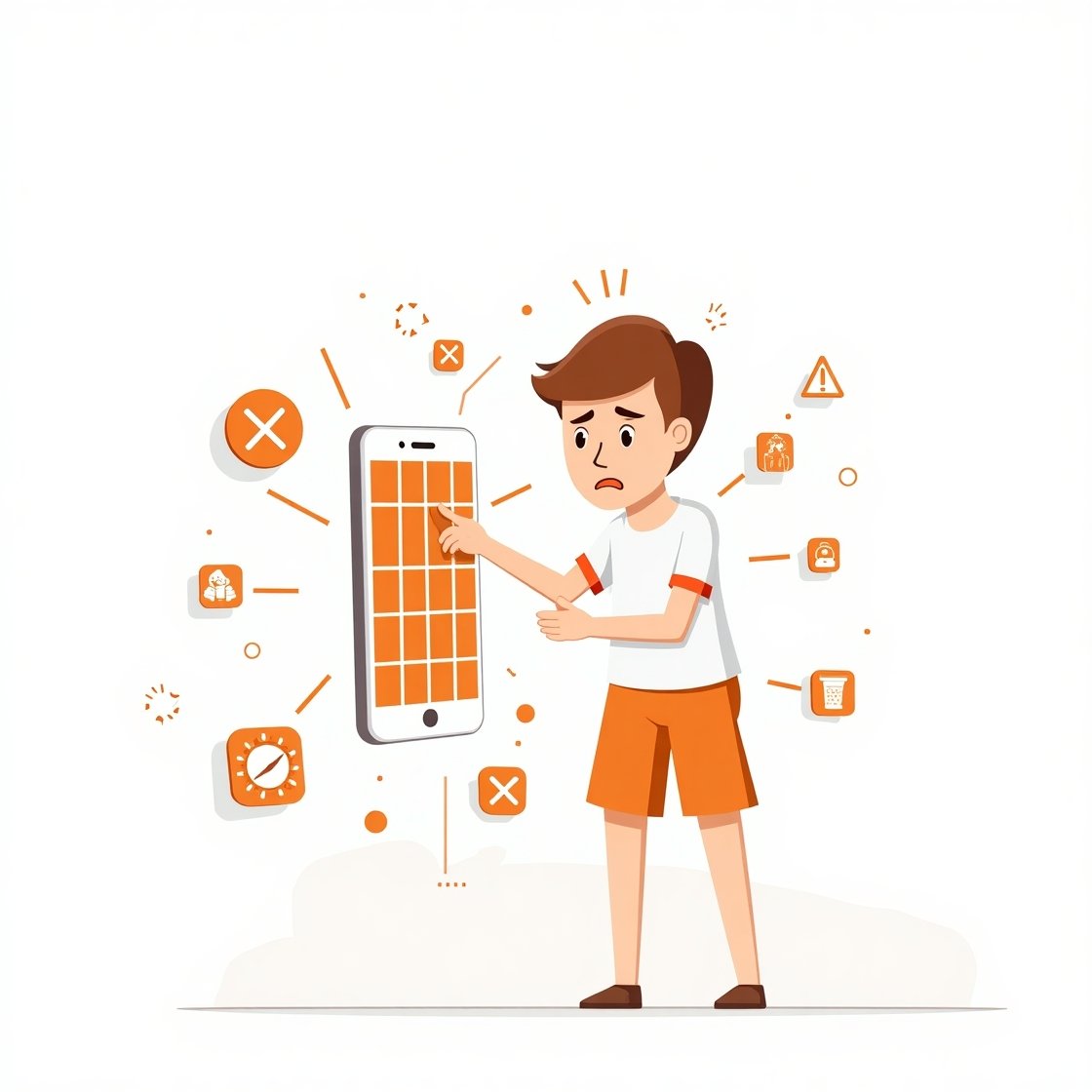
- Pinpoint dead zones: Find exact areas that don’t register input.
- Verify multitouch: Confirm that all fingers register simultaneously important for gaming, drawing, and gesture-heavy apps.
- Differentiate hardware vs. software faults: If a touchscreen tester shows consistent failures, you likely have a hardware issue; inconsistent behavior can indicate software, ROM, or driver problems.
- Before you sell or buy used devices: Quick screen touch testing prevents nasty surprises.
Common symptoms that demand a touch screen test

- Taps or swipes are delayed or inaccurate
- Ghost touches (screen reacts without touching)
- Gestures (pinch/zoom, three-finger swipe) fail
- Only some parts of the screen respond
- Pressure sensitivity feels off (on stylus-capable panels)
Types of tools you can use

1. Built-in diagnostics
- Some Android OEMs provide hidden menus (e.g., *#0*# on certain Samsung models) for a full touchscreen test.
- Windows often includes calibration and diagnostic tools (Tablet PC Settings, calibrate.exe).
2. Third-party apps
Mobile stores offer touch screen test apps, multitouch tester utilities, and touch screen checker tools that visualize every touch point and track accuracy.
3. Browser-based testers
Quick, no-install touchscreen tester pages let you draw on a canvas to detect gaps and latency.
How to run a screen test on major platforms

Android
- Enable developer options (optional) to show touch points & pointer location for live debugging.
- Install a touch screen checker or multitouch tester app.
- Trace straight lines across the entire display look for gaps, jumps, or lag.
- Try with and without a screen protector.
iOS / iPadOS
- Use accessibility features like AssistiveTouch to cross-check touch accuracy.
- Open a drawing app and drag your finger slowly along a grid.
- If issues persist, run Apple Diagnostics or visit a service center.
Windows 10/11 tablets & 2-in-1s
- Open Calibrate the screen for pen or touch input → Calibrate.
- Use a pen/drawing app to perform a screen test visually.
- Update or roll back touch/pen drivers via Device Manager.
Kiosks, POS & embedded panels
- Use vendor-provided touchscreen tester utilities or generic HID-touch diagnostics.
- Ensure grounding and interference shielding are correct EMI can cause ghost touches.
How to interpret results

- Dead spots: Consistent non-responsive regions indicate panel damage or digitizer failure.
- Erratic lines / jitter: Could be moisture, EMI, poor grounding, damaged cables, or a failing controller.
- Limited touch count: If a multitouch tester only recognizes 2–3 points on a panel rated for 10, check firmware, OS, or hardware limitations.
- Latency spikes: Background CPU load, throttling, or driver bugs can affect responsiveness.
Fixes to try before replacing hardware
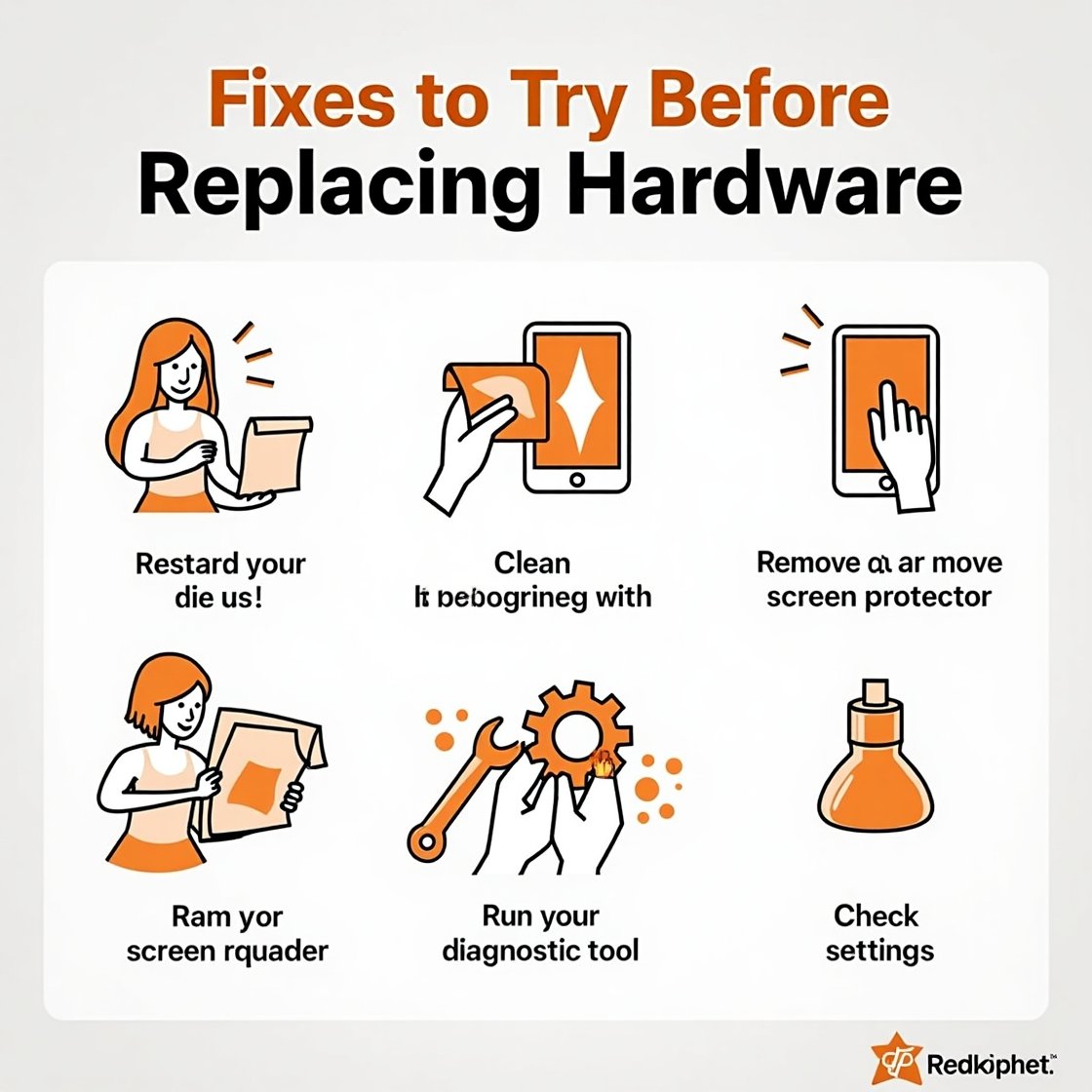
- Clean & dry the screen (moisture and oils can interfere).
- Remove the screen protector / case (some cheap protectors cause input loss).
- Reboot & safe mode (rules out app conflicts).
- Driver / firmware updates (Windows, Android custom ROMs, OEM utilities).
- Factory reset (last resort to exclude software).
- Check cables/connectors (for DIYers on laptops, kiosks, and SBC projects).
If these fail and your touch screen test still shows consistent failure, it’s probably time to replace the digitizer or the whole display assembly.
- Clean & dry the screen (moisture and oils can interfere).
Best practices for long-term touch accuracy
- Use high-quality, compatible screen protectors.
- Avoid extreme temperatures and moisture.
- Keep firmware and OS updated.
- For kiosks/industrial devices, ensure proper grounding and EMI shielding.
What’s the quickest way to test the touch screen on Android?
Install a touchscreen tester or touch screen checker app, draw lines across the screen, and verify all fingers register in a multitouch tester.
How do I know if my problem is software or hardware?
Run multiple touchscreen test apps, reboot, and try safe mode. If the same area always fails, it’s likely hardware; if it varies, try updating or resetting software.
Can a screen protector cause touch issues?
Yes. Low-quality or thick protectors can reduce sensitivity or block edges. Remove it and re-run screen touch testing.
Why does my device only detect two touches when it should detect ten?
Firmware, drivers, or OS limits—or an actual hardware fault. Verify with different multitouch tester tools and check for updates.
Do laptops with Windows support multitouch tests?
Yes. Use drawing apps or third-party diagnostics. Windows also provides calibration utilities to refine accuracy.
Are ghost touches always hardware-related?
Not always. EMI, moisture, faulty chargers/cables, or rogue apps can trigger ghost inputs. Test with a screen test tool after disconnecting peripherals and drying the screen.
When should I replace the digitizer?
If repeated touch screen tests show the same dead zones, after trying software fixes and cable reseats (where applicable), replacement is the practical solution.
Final Thought
Needless to say, structured screen touch testing is the most direct path to understanding whether your mobile device is glitchy, your refurbished tablet is working properly, or your commercial kiosk is well-maintained. Begin with an easy touchscreen test or touchscreen tester, move to multitouch testers when you are dealing with heavy gestures, and based on the result, you can choose to either fix the software or calibrate or replace the hardware as a whole. Regular testing ensures your device is precise, fast and unrestraining.