
Checker Tools
Text Tools
- Text separator
- Email extractor
- URL extractor
- Text size calculator
- Duplicate lines remover
- Text to speech
- IDN Punnycode converter
- Case converter
- Character counter
- List randomizer
- Reverse words
- Reverse letters
- Emojis remover
- Reverse list
- List alphabetizer
- Upside down text generator
- Old English text generator
- Cursive text generator
Developer Tools
Generator Tools
Image manipulation tools
- BMP to ICO
- ICO to JPG
- ICO to GIF
- ICO to PNG
- ICO to WEBP
- ICO to BMP
- GIF to JPG
- GIF to ICO
- GIF to PNG
- GIF to WEBP
- GIF to BMP
- HEIC to PNG
- HEIC to GIF
- HEIC to JPG
Effortless PNG to BMP Conversion Made Easy
How to Convert Image from PNG to BMP Format without Losing Image Quality
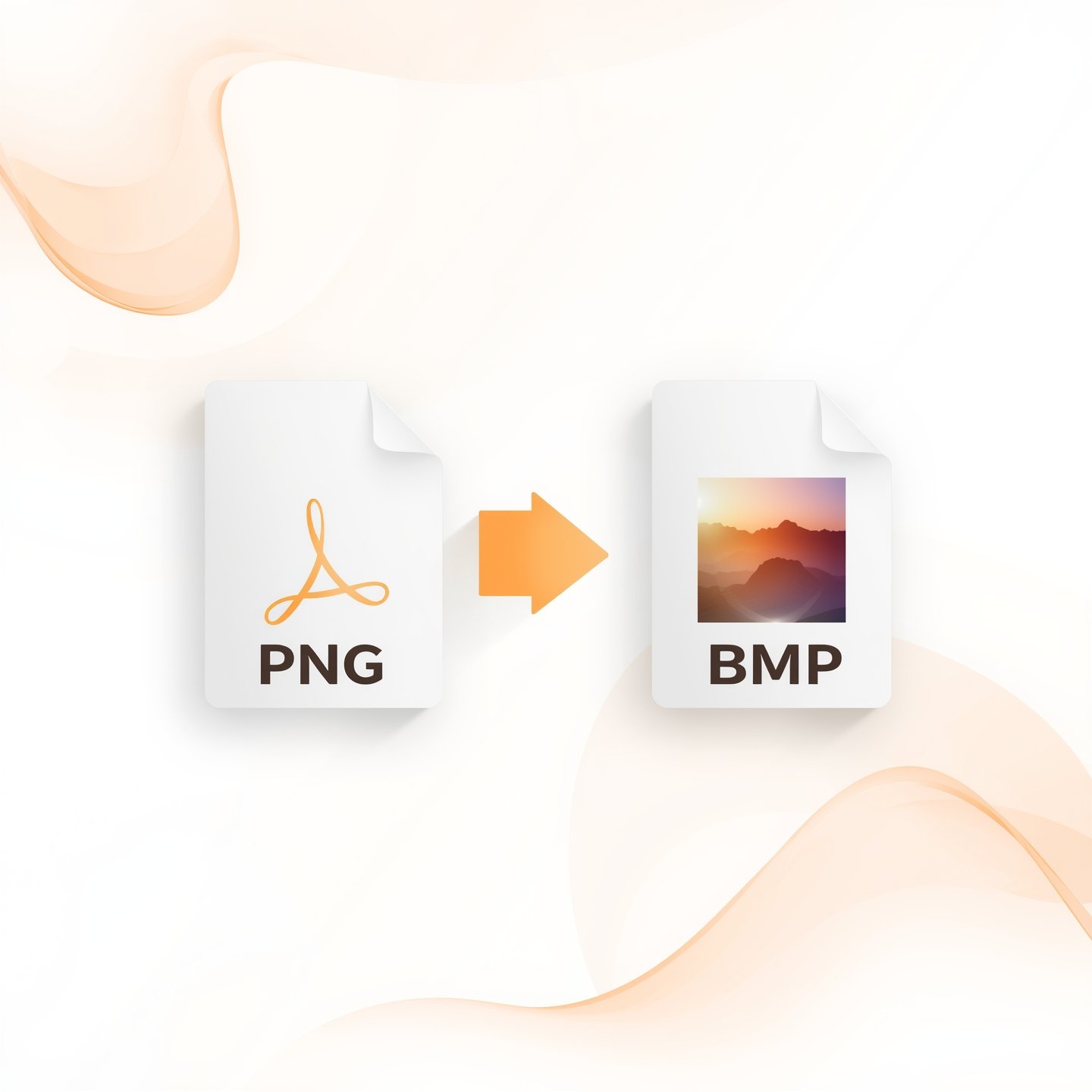
I have often had to convert an image from png to bmp format without losing quality to save money on files by relying on open-source tools that supports transparency and animation; I have been widely using these methods because of its high compression ratio, which produces excellent visual results even with older graphics, a system more commonly uses for any problem a graphic designers face when they don’t know how to handle images in bulk the simplest solution to change the approach is very effective, and I always describe my process clearly in the article where we explain that it’s an easy method is reliable and efficient end.
Why Users Choose to Convert PNG to BMP Format
- I often batch convert an image from png to bmp for various reasons, supported by strong justifications for using this technique.
- The bmp format is uncompressed, meaning images stored in it are not compressed, which improves the quality.
- The result is incredibly clear, natural, and rich in colour, preserving the original picture details.
- Saving in BMP offers the greatest benefit, especially when the image remains identical to the original.
- I depend on high-quality photos for printing, and this format is closely associated with printed visuals.
- Microsoft Paint mainly uses the BMP format, so everytime I save an image block, the file type is set to BMP by default.
- Though it has a vast size, the format doesn’t permit compression, which is ideal when visual precision is essential.
Step-by-Step Way to Convert PNG File to BMP Format
If you want to convert an image from png to bmp and avoid any loss of quality, the best tool I’ve used is a software called 4n6 File Converter Tool, which is able to process multiple files without any size restrictions. Many users start by wondering whether a manual solution is available, and while the answer is yes, it has lots of limitations. I usually suggest using the automated option even if you’re curious about the manual way. After that, if you still want to try it, you have to use it carefully just follow what we’ve told about in the section below. But before knowing that, it’s important to read the steps and understand the benefits of the automated software, which is recommended by all.
Free Online Tools to Convert PNG to BMP
When I first needed a free and online solution for converting png to bmp, I didn’t want to download any heavy software. That’s when I started to use a converter like Tool checking, a powerful platform that truly helps with more than just image conversion it also supports writing and editing tasks. What I liked most is that it met all my needs in one place and was incredibly fast, convenient, and totally user-friendly. So, if you’re looking for an easy answer, the yes is clear with tools like these.
How to Choose the Right Image Format for Different Platforms
When choosing the right image format for different platforms, I know it can feel like a daunting task, but with some easy-to-follow tips, it becomes much easier. I’ve often helped others and found that small insights really help make the decision simple.
Consider the Purpose of the Image
You must consider the purpose of the image whether it’s for print, web, or social media. Each platform has its own requirements, so making sure your file is compatible with your plan and how you’ll use it really matters.
Know the Differences Between Image Formats
It helps to know the differences between types of image formats, because each one has its own purpose and fits different needs. I always look at the content and platform before choosing.
JPEG
JPEG is a widely used format for photographs that have rich colors. Since it’s compressed, it reduces file size without compromising the quality, making it perfect for websites, Instagram, and Facebook.
PNG
PNG is a lossless format that maintains the original quality while compressing the file. It’s ideal for transparent backgrounds, logos, and graphics with text. I use PNG for websites, mobile apps, and social media platforms where clarity matters.
GIF
GIF is great when I want to show short moving images. It supports animations that are short and looped, which is perfect for posts on Twitter, and many other social media platforms.
SVG
SVG is a vector format and works well for clean, resizable designs like logos and icons. These graphics are easy to scale, and I often displayed them at various sizes on websites, mobile apps, and other platforms.
BMP
BMP files don’t lose quality due to compression, which makes them great for high resolution visuals. I use them when I need full color depth in digital photographs or other high-quality graphics.
Consider File Size and Image Quality
I always consider the file size and image quality before picking a format. For high-quality outputs, TIFF or RAW are excellent choices, but they’re not smaller. When I need something quick, I go with formats that maintaining good quality in smaller sizes.
Check Platform Requirements
It’s important to check the platform and its requirements. For example, Instagram prefers JPEG or PNG, while Twitter supports GIF and PNG too. Before uploading, I always ensure the format is compatible.
Test the image on different platforms
I always test the image on different platforms to see how it will look. This helps me identify any issues early and make necessary adjustments. If I need to convert quickly, I use an easy-to-use PNG to BMP converter like toolchecking.
Final Thoughts
From my own experience handling thousands of product listings, the need to batch convert every image from PNG to BMP quickly became clear. While some methods work better than others, this blog post is focused on presenting an option that truly satisfies what most users actually want speed and reliability. As we’ve already said, the manual technique works if you have a limited number of photographs to save, but it has serious drawbacks when the volume increases. That’s why I strongly advise using the Professional Solution we’ve already indicated earlier in this post, especially when dealing with bulk photos. It’s the most efficient approach I’ve tried, and it’s readily available to help in any event where time or accuracy matters, as previously mentioned.
Q: Can you save a JPG as a BMP?
Yes, you can save a JPG as a BMP using most image editing software like Photoshop, Paint, or even online converters. Just open the JPG file, choose “Save As” or “Export,” and select BMP as the output format.
Q: Are PNG and BMP the same?
No, PNG and BMP are not the same. PNG is a compressed format that supports transparency and is web-friendly, while BMP is an uncompressed format known for its large file size and higher quality, mostly used in printing and Windows-based applications.
Q: What is the difference between JPG and BMP file size?
JPG files are usually much smaller than BMP files because JPG uses lossy compression to reduce size, which slightly reduces image quality. BMP files are uncompressed and retain full image detail, resulting in significantly larger file sizes.
Q: How to save BMP from Photoshop?
To save a BMP file in Photoshop, go to File > Save As, choose BMP from the file format dropdown menu, select your preferred options like bit depth, and click Save. This method ensures your image is exported in high-quality BMP format.