
Checker Tools
Text Tools
- Text separator
- Email extractor
- URL extractor
- Text size calculator
- Duplicate lines remover
- Text to speech
- IDN Punnycode converter
- Case converter
- Character counter
- List randomizer
- Reverse words
- Reverse letters
- Emojis remover
- Reverse list
- List alphabetizer
- Upside down text generator
- Old English text generator
- Cursive text generator
Developer Tools
Generator Tools
Image manipulation tools
- BMP to ICO
- ICO to JPG
- ICO to GIF
- ICO to PNG
- ICO to WEBP
- ICO to BMP
- GIF to JPG
- GIF to ICO
- GIF to PNG
- GIF to WEBP
- GIF to BMP
- HEIC to PNG
- HEIC to GIF
- HEIC to JPG
JPG to BMP: How to Convert and Why You Might Need It
In the digital world, image formats can affect not only the quality of your graphics but also how they function across devices and software. If you’ve ever worked with digital art, graphic design, or certain industrial tools, you might’ve encountered a need to convert JPG to BMP. But why would anyone want to switch from the highly popular JPG format to the lesser-used BMP?
Let’s explore everything you need to know about JPG to BMP conversion, from the basics of both formats to tools, use cases, and the best JPG to bitmap converter options available today.
Understanding the Difference Between JPG and BMP
JPG (or JPEG) is a compressed image format that’s widely used on the web due to its small file size. It’s great for photographs, website content, and email attachments. However, compression leads to some loss in image quality a trade-off many are willing to accept.
BMP (Bitmap), on the other hand, is an uncompressed format that stores pixel-by-pixel data. It provides higher quality but at the cost of larger file sizes. BMP files are often used in image editing software, certain printing applications, or embedded systems where image quality is prioritized over size.
In essence, JPG BMP files are like two different languages each suited for its own audience and purpose.
Why Convert JPG to BMP?
You might want to convert JPG to BMP if:
- You need a higher-quality image for editing.
- Your software or hardware only supports BMP files.
- You’re working on a technical project, like microcontroller programming, that requires bitmap images.
- You want to preserve every pixel without compression artifacts.
In such cases, performing a JPG to bitmap conversion can help maintain image fidelity and ensure compatibility with specialized tools.
How to Convert JPG to BMP File?
There are several methods for converting JPG to BMP files depending on whether you prefer online tools, built-in software, or dedicated apps.
1. Using Paint (Windows Built-in)
One of the simplest ways to handle JPG to BMP conversion is by using Microsoft Paint:
- Open your JPG file in Paint.
- Click on File > Save As.
- Choose “BMP Picture” from the dropdown.
- Save the file.
That’s it you’ve successfully performed a JPG a BMP conversion!
2. Online JPG to Bitmap Converter Tools
For those who don’t want to install software, online tools work great. Some popular options include:
These platforms allow you to upload a JPG and get a BMP file in seconds. Just make sure your chosen tool is secure and doesn’t store your data unnecessarily.
3. Image Editing Software
Tools like Adobe Photoshop, GIMP, or IrfanView offer advanced conversion features. These are ideal if you’re working with bulk images or need to tweak color profiles during the JPG to bitmap transformation.
Things to Keep in Mind During Conversion
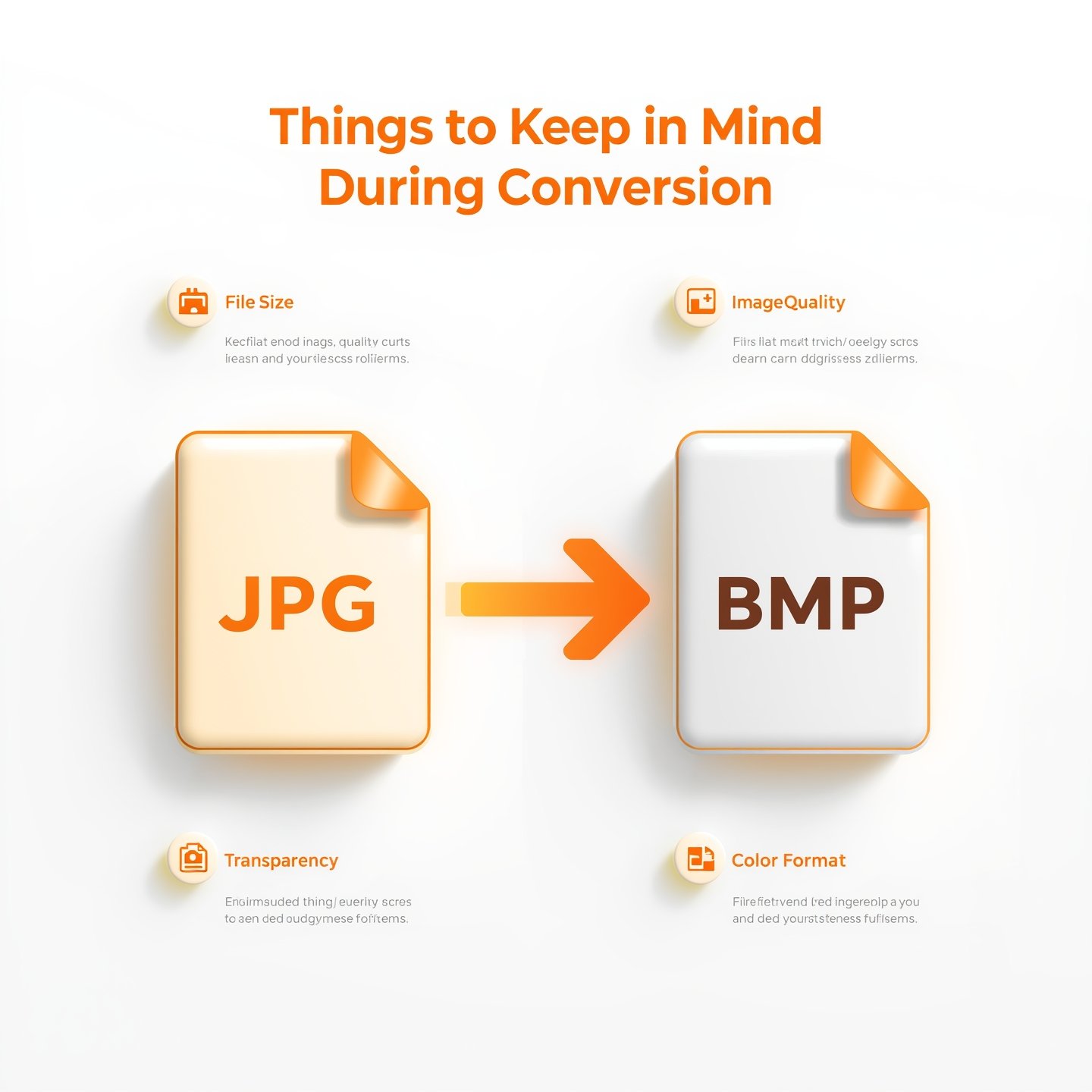
- File Size: BMP files can be much larger than JPGs, so ensure you have sufficient storage.
- Image Quality: Although BMP is lossless, converting a low-quality JPG won’t magically improve the image.
- Transparency: BMP doesn’t support transparency the same way PNG does. If your JPG has transparent areas (via alpha channel in PNG), it might not be retained.
- Color Format: BMP can support 1-bit, 4-bit, 8-bit, or 24-bit color. Choose the right one depending on your use case.
JPG to BMP File Compatibility
After converting a JPG to BMP file, you’ll notice the difference when using the image in design software, hardware programming, or printing. Bitmap files are especially useful in situations where:
- Devices need consistent image rendering (e.g., embedded LCD screens).
- You’re printing large-scale posters.
- You need detailed pixel-level editing.
For developers or engineers, the JPG to BMP format switch can unlock compatibility with industrial machines and legacy software.
Final Thoughts
Whether you’re a designer, developer, or just someone needing to adjust formats, knowing how to convert JPG to BMP file is a handy skill. With simple tools like Microsoft Paint or more advanced options like Photoshop, you can easily manage the JPG to BMP conversion without hassle.
Although BMP files are larger and less popular than JPGs, they serve important roles in specific workflows. Understanding when and how to use a JPG to bitmap converter can help you improve quality, gain compatibility, and stay flexible in your digital projects.
Q: What is the difference between JPG and BMP?
JPG is a compressed image format ideal for web use, while BMP is an uncompressed, high-quality bitmap format used for detailed editing and specialized software compatibility.
Q: Is converting JPG to BMP lossless?
The conversion itself doesn’t lose more data, but since JPG is already compressed, you won’t regain lost quality. The BMP will retain whatever quality the JPG had at the time of conversion.
Can I convert BMP back to JPG?
Yes, you can easily convert BMP images back to JPG using online tools like the BMP to JPG converter on ToolChecking.com. It helps reduce file size while keeping good image quality.
Q: What is the best JPG to bitmap converter?
It depends on your needs. For quick jobs, Tool Checking and Convertio work well. For professionals, software like Photoshop or GIMP is ideal.
Q: Can I convert JPG to BMP in bulk?
Yes, tools like IrfanView and some online converters offer batch processing features, allowing you to convert JPG to BMP in bulk with just a few clicks.
Q: Do BMP files support transparency?
Basic BMP files don’t support transparency. If you need transparent images, consider using PNG or formats that support alpha channels.