
Checker Tools
Text Tools
- Text separator
- Email extractor
- URL extractor
- Text size calculator
- Duplicate lines remover
- Text to speech
- IDN Punnycode converter
- Case converter
- Character counter
- List randomizer
- Reverse words
- Reverse letters
- Emojis remover
- Reverse list
- List alphabetizer
- Upside down text generator
- Old English text generator
- Cursive text generator
Developer Tools
Generator Tools
Image manipulation tools
- BMP to ICO
- ICO to JPG
- ICO to GIF
- ICO to PNG
- ICO to WEBP
- ICO to BMP
- GIF to JPG
- GIF to ICO
- GIF to PNG
- GIF to WEBP
- GIF to BMP
- HEIC to PNG
- HEIC to GIF
- HEIC to JPG
BMP to PNG Converter – Free Online Image Conversion
How to Convert BMP to PNG: A Complete Guide
With digital graphics the quality and compatibility of a file format mainly depend on the file-type. In case you deal with bitmap files and want to keep the image format and yet have improved features of compression/transparency then the clever thing is to convert bitmap to PNG. It does not matter whether you are working with simple icons or complex illustrations, it helps to know how and why you can convert BMP to PNG to simplify your work.
Understanding the BMP and PNG Formats
A bitmap (BMP) file is an image file format (raster graphics) to store digital images in. The BMP files are not compressed and tend to be rather big, which is not really viable in the web or mobile environment. Conversely, PNG (Portable Network Graphics) is a more updated and compressed one, having a high quality and allows transparency.
Bitmap png transition is an everyday activity which is undertaken by graphic designers, developers as well as marketers. BMP files though very simple and complete in their details are inefficient in sharing and loading on digital platforms. And this is when BMP to PNG converter is useful which is faster, more compact in file size, and rich in functionality.
Why You Should Convert Bitmap to PNG
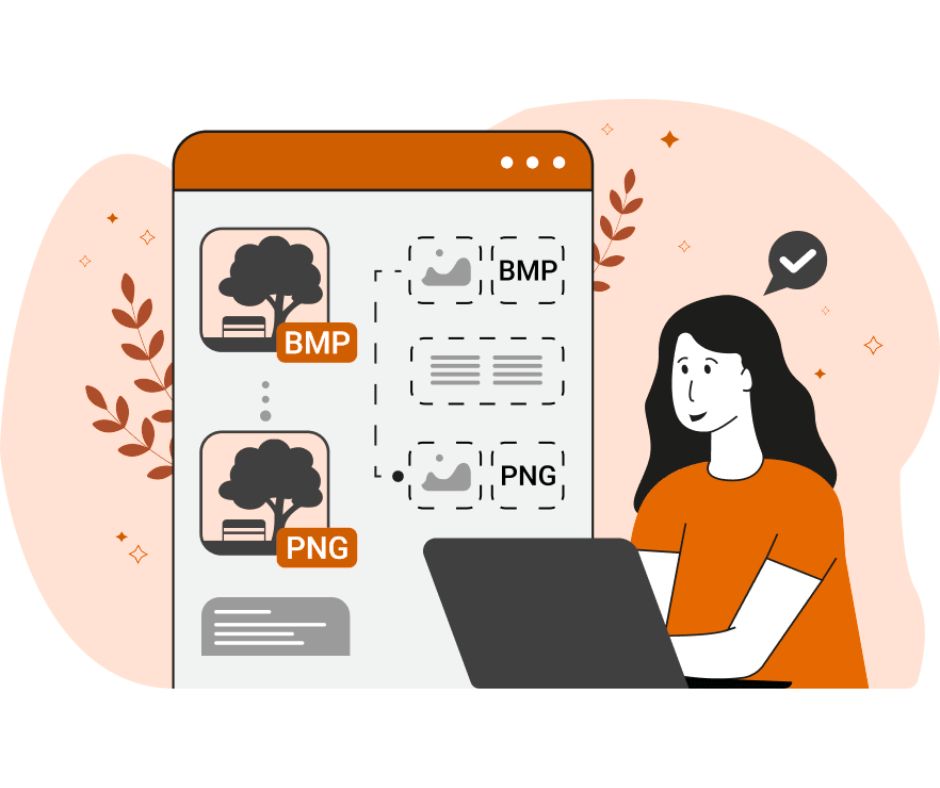
Here are some solid reasons to convert bitmap to PNG:
- Compression Efficiency: PNG files are compressed without losing data, making them much smaller than BMPs.
- Transparency Support: Unlike BMP, PNG supports alpha transparency, which is vital for UI/UX design.
- Browser Compatibility: Modern web browsers and mobile platforms are more optimized for PNG files.
- Quality Preservation: PNG uses lossless compression, meaning your image quality stays intact during the conversion.
Whether you’re editing graphics for the web or preparing assets for mobile apps, it’s a good idea to change BMP to PNG for smoother delivery and user experience.
Methods to Convert BMP to PNG
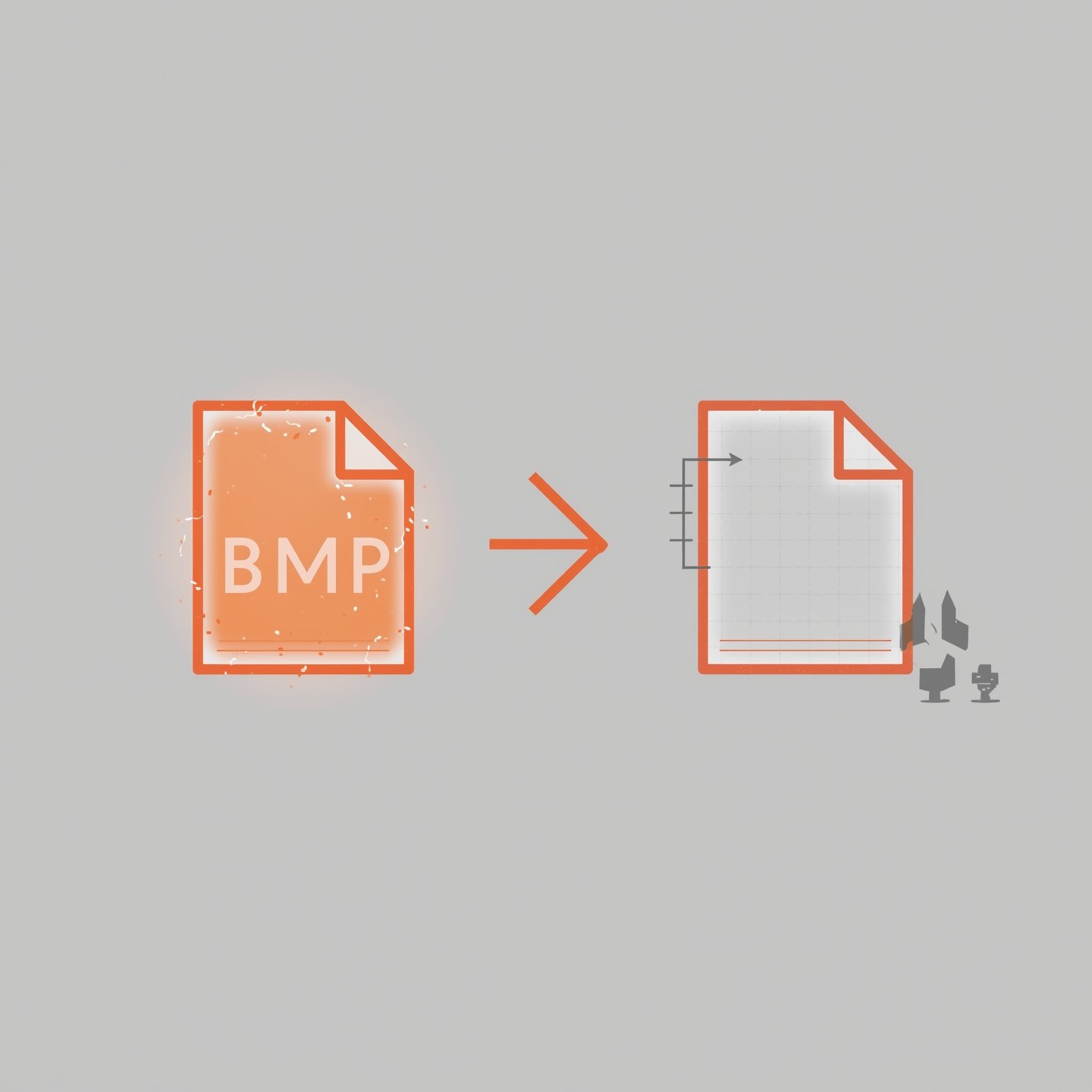
1. Online BMP to PNG Converter Tools
One of the easiest ways to convert BMP image to PNG is by using online converters. These platforms are user-friendly and typically require no software installation. Just upload your .bmp to PNG and download the converted file in seconds. Some popular tools include:
- Convertio
- Zamzar
- CloudConvert
These tools often support batch conversion, which is especially useful when handling multiple files.
2. Using Software Like Photoshop or GIMP
When you work in a professional field, you can use enhanced features such as Adobe Photoshop or GIMP. Open your BMP file and click on file -> Save As and then choose PNG as the output file. The technique allows you to regulate quality, resolution, and transparency of the image further.
3. Windows Paint or macOS Preview
You don’t need expensive software to convert BMP to PNG. Simple tools like Microsoft Paint (on Windows) or Preview (on Mac) support this functionality.
Steps using Paint:
- Open the BMP file.
- Click “File” > “Save As.”
- Choose PNG from the list of file types.
And just like that, your bmp in png format is ready to use.
Common Scenarios for BMP to PNG Conversion
- Website Development: PNGs are lighter and faster to load on browsers, enhancing SEO and performance.
- Mobile App Design: PNG’s transparency support makes it ideal for overlays and icons.
- Digital Art and Photography: PNG preserves image detail without the bloated file size of BMPs.
- Email Marketing: Faster load times and better compatibility with email clients make PNGs preferable.
In short, whenever quality and compatibility are a concern, bitmap to PNG is a wise choice.
Q1: What’s the difference between BMP and PNG?
BMP is an uncompressed format that stores images in full detail but results in large file sizes. PNG is a compressed format that retains quality and supports transparency, making it more suitable for web and digital use.
Q2: Is there a loss of quality when converting BMP to PNG?
No. PNG uses lossless compression, so your image quality remains the same during the conversion process.
Can I change a PNG file into a BMP without losing quality?
Yes, you can convert a PNG to BMP without losing quality. Both formats are uncompressed or lossless, so the image details stay the same during conversion. Just use a reliable PNG to BMP converter and make sure the original file is high quality.
Q3: Can I convert .bmp to PNG without software?
Yes, many free online tools let you upload your BMP and download a PNG without installing anything.
Q4: Are there BMP to PNG converters for mobile devices?
Absolutely. Apps on Android and iOS such as “Image Converter” or “Photo & Picture Resizer” allow you to convert BMP to PNG easily.
Q5: Is PNG better than BMP for printing?
While PNG is great for screens and digital platforms, BMP might still be better for high-quality printing because it holds uncompressed image data. For digital use, PNG wins.
Final Thought
Your step to making your bitmap into PNG is easy but still useful so that your image processing is improved. PNG files are the future of digital graphics with improved compression, transparency attributes, and great compatibility. A conversion of BMP to PNG can take place online, with design tools or even on-board system programs, but the resulting profile of digital content should be improved.
Next time when you have a huge .bmp to PNG image file in front of your eyes, remember that converting to PNG only takes a couple of clicks and it is worth it.