

Checker Tools
Text Tools
- Text separator
- Email extractor
- URL extractor
- Text size calculator
- Duplicate lines remover
- Text to speech
- IDN Punnycode converter
- Case converter
- Character counter
- List randomizer
- Reverse words
- Reverse letters
- Emojis remover
- Reverse list
- List alphabetizer
- Upside down text generator
- Old English text generator
- Cursive text generator
Developer Tools
Generator Tools
Image manipulation tools
- BMP to ICO
- ICO to JPG
- ICO to GIF
- ICO to PNG
- ICO to WEBP
- ICO to BMP
- GIF to JPG
- GIF to ICO
- GIF to PNG
- GIF to WEBP
- GIF to BMP
- HEIC to PNG
- HEIC to GIF
- HEIC to JPG
JPG to GIF Converter – Free Online Image Conversion
Instant JPG to GIF Magic – Convert in Seconds

The images may have to be converted as required due to some creative, professional or technical requirements which will involve image conversion in the cyber world. An ordinary conversion is that of a JPG into a GIF screen. You might prefer to add some movement to a series of still images or simply require a smaller file type, whichever the case this guide will walk you through each step so that you know everything about it such as how to convert JPG to GIF and the much more interesting; how to make animated GIF out of video.
Why Convert JPG to GIF?
JPG (or JPEG) is one of the most widely used image formats due to its high compression and photo-realistic quality. However, GIF (Graphics Interchange Format) has unique advantages that make it more suitable in certain scenarios. For instance:
- GIFs support transparency and animation.
- GIF files are ideal for short visual loops, memes, and reaction clips.
- GIFs can be more compact for simpler graphics or limited-color images.
Now, what are the cases when we need to convert JPG to GIF? In a normal case scenario, when you require to add animation or motion to an image or when you prefer to maintain image integrity using fewer colors and lesser size. You may consider using jpeg to gif conversion software or any other simple online software you know of which gives you the capability of converting image into gif without downloading and installing heavy software.
How to Convert JPG to GIF
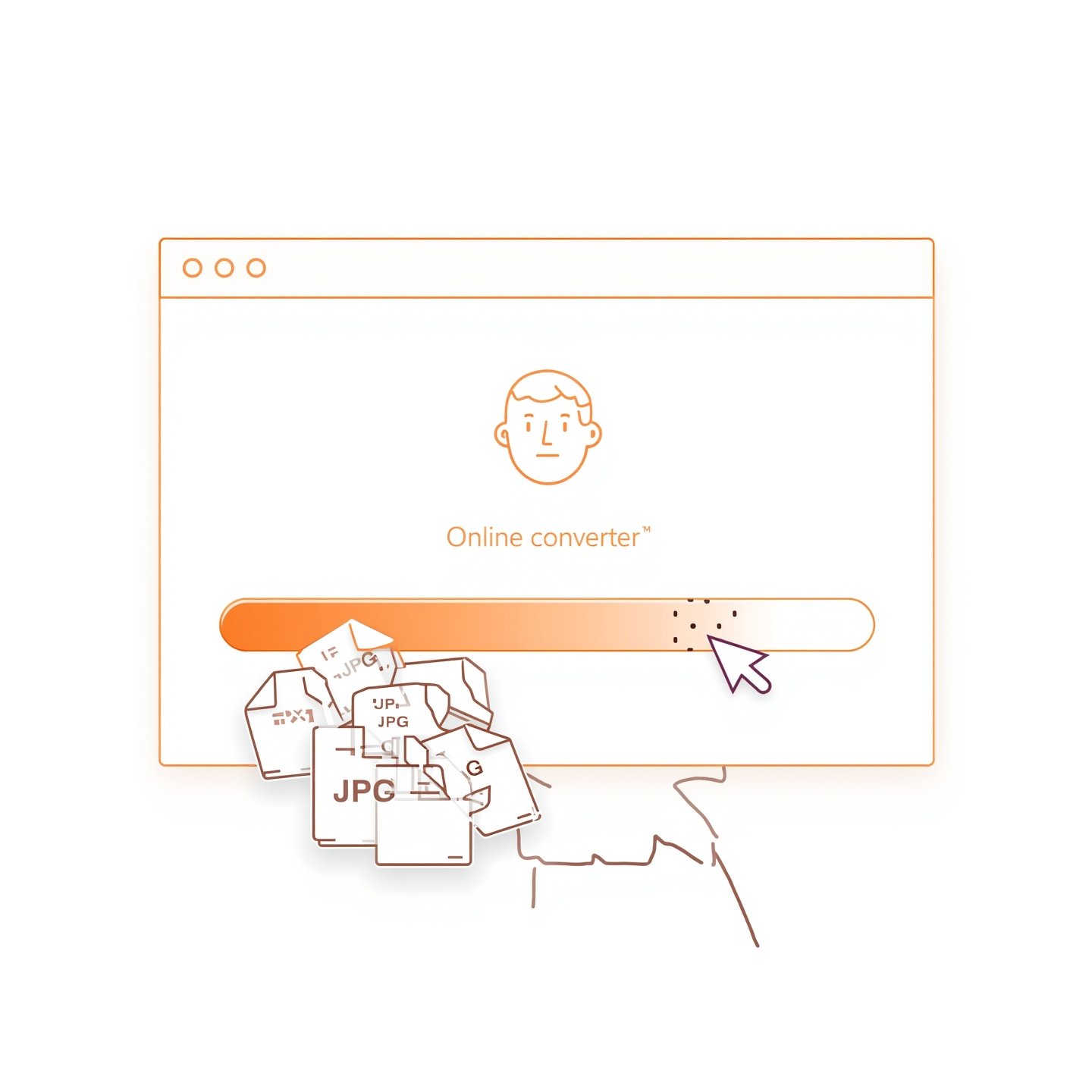
There are multiple ways to convert a JPG to GIF, depending on your operating system and tools available.
1. Online JPG to GIF Converter Tools
The easiest way is using a JPG to GIF converter online. Websites like EZGIF, CloudConvert, and Convertio offer drag-and-drop simplicity. Here’s how to do it:
- Upload your JPG image.
- Choose GIF as the output format.
- Hit the convert button.
- Download the resulting GIF.
The majority of these sites are also used as image to GIF converters so, there is a possibility to make a looping animated GIF by uploading several JPGs. Most users type the name of such web tools such as jpg to gif file converter or even jpeg to gif converter to locate such easy to use web tools.
2. Using Photoshop or GIMP
If you prefer more control over the output, software like Adobe Photoshop or GIMP allows you to open a JPG and export it as a GIF. In Photoshop:
- Open the JPG.
- Go to File > Export > Save for Web (Legacy).
- Choose GIF as the format.
- Adjust settings for transparency, looping, and color.
This option is particularly helpful if you want to convert image to gif in bulk and fine-tune the output for animation or web optimization.
JPG to Animated GIF: Creating Movement
Creating an animated GIF from JPGs involves combining multiple JPG files into a single looped file. Most JPG to animated GIF converters (like EZGIF) allow you to upload a series of images in sequence. You can:
- Control the frame delay.
- Set loop counts (infinite or finite).
- Add effects such as fade, resize, or reverse.
This process is ideal when you need to convert image into gif for social media, tutorials, or engaging content. These tools act as both an image to gif converter and a basic animation tool rolled into one.
Convert Video to GIF
Another option is using a video to GIF converter. If you want to turn a clip into a short animation, this tool is your best friend. Most online converters support formats like MP4, MOV, and AVI. Here’s how it works:
- Upload or paste a video link.
- Trim the part you want to turn into a GIF.
- Customize settings (resolution, frame rate).
- Download the animated GIF.
Once your video is turned into a GIF, you can edit or optimize it further using a jpeg to gif converter or similar platform to keep the style consistent across your media.
‘
How to Decrease GIF File Size
GIFs, especially animated ones, can get large fast. If you’re dealing with storage limits or upload restrictions, it’s important to decrease GIF file size. Here are several ways:
- Reduce frame rate: Fewer frames per second mean smaller file size.
- Resize dimensions: Shrinking the width and height can significantly reduce size.
- Limit colors: GIFs support up to 256 colors. Reducing this can save space.
- Trim duration: Shorter animations take up less storage.
- Use compression tools: Online tools like EZGIF offer a “compress GIF” option.
Many jpg to gif file converter tools now include size optimization features, giving users the ability to produce high-quality GIFs without worrying about file limits.
Q1: Can I convert multiple JPGs to a single animated GIF?
Yes, using tools like EZGIF or GIMP, you can combine multiple images into one looping GIF. Just upload the images in the correct order using a JPG to animated GIF or image to GIF converter.
Q2: Are there free JPG to GIF converter tools?
Absolutely. Many online platforms offer completely free JPG to GIF converter services. Just upload your image, convert, and download without registration.
Q3: Will converting JPG to GIF reduce quality?
It depends. Since GIF only supports 256 colors, converting a high-quality JPG to a GIF might result in a slight color loss. However, for simple images, the difference is minimal.
Q4: How do I make sure my GIF isn’t too large to upload?
You can decrease GIF file size by reducing resolution, color depth, and frame rate. Most converters also have built-in optimization settings.
Q5: Can I turn a video into a GIF?
Yes, use a video to GIF converter. Upload your clip, trim it as needed, and export it as an animated GIF. Perfect for social media and tutorials.
Final Thought
Transforming a JPG to GIF is a whole new creative world with average conversion and vibrant animation of graphics. Having an image converter with GIF option, making a JPG to animated GIF or searching a video to GIF converter, the current tools have made this process dead easy. By using such tools as a jpeg to gif converter or services such as convert image to gif you will be able to derive your visuals within a few clicks. Knowing how to save JPG as GIF, and even better, how to optimize the size of a GIF file, will leave you the efficient and flexible worker in any digital operation.