

Checker Tools
Text Tools
- Text separator
- Email extractor
- URL extractor
- Text size calculator
- Duplicate lines remover
- Text to speech
- IDN Punnycode converter
- Case converter
- Character counter
- List randomizer
- Reverse words
- Reverse letters
- Emojis remover
- Reverse list
- List alphabetizer
- Upside down text generator
- Old English text generator
- Cursive text generator
Developer Tools
Generator Tools
Image manipulation tools
- BMP to ICO
- ICO to JPG
- ICO to GIF
- ICO to PNG
- ICO to WEBP
- ICO to BMP
- GIF to JPG
- GIF to ICO
- GIF to PNG
- GIF to WEBP
- GIF to BMP
- HEIC to PNG
- HEIC to GIF
- HEIC to JPG
Text to Speech Online – Transform Your Words into Audio
Text to Speech
Both STT and TTS are widely used today responding to different requirements including the accommodation of people with disabilities, entertainment, and optimization of work. It includes the ability to transcribe voice text fully, generate speech automatically, and support multiple languages for multiple international customers. This article explores how they work; what tools are used in conjunction with them; how to go about fixing them; and new concepts such as AI-generated voices.
Text-to-Speech Online Free:
The use of Online tools allow users to convert text to speech without having to download and install anything. They are versatile and can be accessed anytime from any device with the internet.
Popular Online Free TTS Tools:
Tool Checking Online Free for the best quality voice.
VoiceMaker: Set voice parameters for personal preferences from the convenience of the Internet.
Text-to-Speech for IRL Twitch Streamers:
Sometimes you see text-to-speech in Supreme Twitch IRL, which is a slang for In Real Life, to increase interaction with the audience. These tools translate the chat messages or donations into voice and bring some comedy into the streams.
Key Benefits for Twitch Streamers:
Enhanced Engagement: Listened to their written messages, the viewers are made to feel that they are participating in it.
Accessibility: For viewers who may find it difficult to read the chat messages, Text-to-speech makes it possible to include them.
Custom Voices: Additional funny sounds include the various community unpopular opinions voice changing from shy girl Text-to-speech mode or robotic.
Some of the most known today are Streamlabs TTS and SpeechChat, which have options to choose voice type, its speed or even to set default reactions to a specific voice tag.
Text to Speech: A Versatile Tool
Text to speech technologies are best suited as an assistive technology, in content production, and in education. They transcribe printed text into oral words; thus making websites and other forms of media accessible to those with limited vision or the physically challenged or those learning through audio mode.
Text-to-Speech Free: Essentials for All
There are many TTS tools out there that offer users basic features without the premium of costly services. These tools are convenient to be used for those people who sometimes need the text-to-speech technology and when they are experimenting with it.
Top Free TTS Options:
- Tool Checking : A dependable solution for those who use Android or IOS.
- NaturalReader Free Online: It provides several features with an option of choosing voices at the most basic level.
- Balabolka: A text to speech tool for Windows where all the conversion is done offline.
To the audiences requiring multiple-language translation, resources such as Spanish AI text-to-speech free tools will enable easy development of multilingual content.
Speech to Text Mac
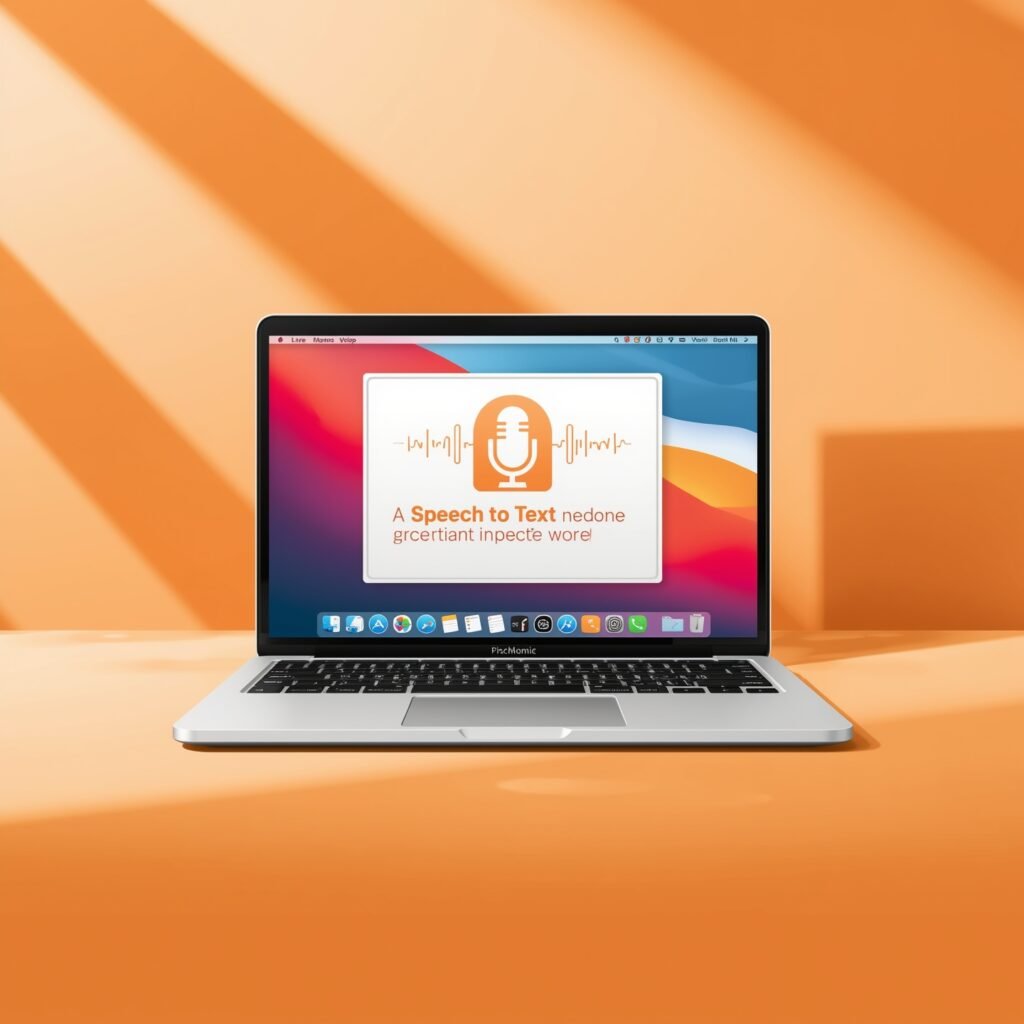
Mac users have a remarkable preinstalled instrument for speech to text conversion named Dictation. This tool allows you to write with your voice which is perfect for writing a document, messaging, or note-taking.
How to Use Speech-to-Text on Mac:
Go to System Preferences, Click on Keyboard Settings then click on Dictation and turn it on.
Use the default shortcut which is you either double-tap the Fn key or press the microphone key.
Talk, and your Mac will turn what you say to text.
When it comes to more enhanced transcription services, Dragon Professional Individual or Otter.ai is suggested for use.
Text-to-Speech Not Working with New Headphones: Troubleshooting Tips
Some user problems arise when TTS compatibility fails with the new Headphone. These are common causes for this problem: incorrect settings or driver conflicts.
How to Fix the Problem:
- Check Default Audio Device: Make sure that headphones are set as default devices for audio output.
- Update Audio Drivers: The problem is that the drivers that are outdated may sometimes create compatibility problems.
- Adjust App Settings: A few of the TTS tools may need to be configured manually for the audio to be directed to the headphones.
- Test Headphones Elsewhere: Determine whether the problem lies with the TTS app or with all the multimedia apps of the device.
- Solving all these concerns enables convenient TTS service across all devices.
Final Thoughts
The speech recognition and speech synthesis technologies are omnipotent in all fields and areas by contributing to productivity on Mac, live streaming on Twitch and content creation. Generators based on AI and TTS solutions and online offers make products available and easily accessible for every user.
Using such features as multilingualism, realistic voices and free Internet tools, you can build interesting, friendly, effective and accessible communication. In the same manner that it is important to understand these technologies in order to troubleshoot issues regarding headphones, it is also crucial in order to get the best out of TTS.
Q: How do I turn on speech to text on Mac?
Access the Keyboard section in the System Preferences and switch to the Dictation subhead; there, you need to turn on Dictation and assign it a shortcut key (Fn or microphone key).
Q: Is there any totally free text to speech software which uses AI voices?
Yes, there are of them, such as Google and Google Text-to-Speech, Balabolka or other services where you can find AI for free.
Q: What is the best TTS tool for multilingual use?
More on multilingual support, tools with Spanish TTS free AI options include NaturalReader or IBM Watson TTS.
Q: Why might TTS be unresponsive when I use my new can I buy headphones?
It depends on how you got the output but basic things such as checking audio settings, drivers and making sure the TTS is able to direct the sound through the headphone should be done.